How to Install DBSync from the HubSpot Marketplace (Step-by-Step Guide)
Introduction
If you use HubSpot to manage your customer relationships and pipeline, there are high changes your financial data is probably in a system like QuickBooks Online or QuickBooks Desktop. Since your sales and finance teams are not connected, it can cause problems such as manual data entry, delayed invoicing, and reconciliation errors.
Now that DBSync is on the HubSpot Marketplace you can link HubSpot with QuickBooks easily. This means you can automate revenue-to-cash workflows without needing to do a lot of development work or stuck in long implementation cycles.
In this guide you will learn how to install DBSync from the HubSpot Marketplace and start using it in few simple steps to make your work easier.
Why You Might Need DBSync with HubSpot
While HubSpot is a great tool for managing customer relationships, it does not work alone. A lot of growing businesses use separate systems for accounting and finance. This causes some problems such as:
- Manual data entry between HubSpot and accounting systems is a hassle
- Delays in converting deals into invoices
- The sales and finance teams often have numbers which do not match
- Increased risk of reconciliation errors
These gaps can slow down your operations and impact cash flow visibility.
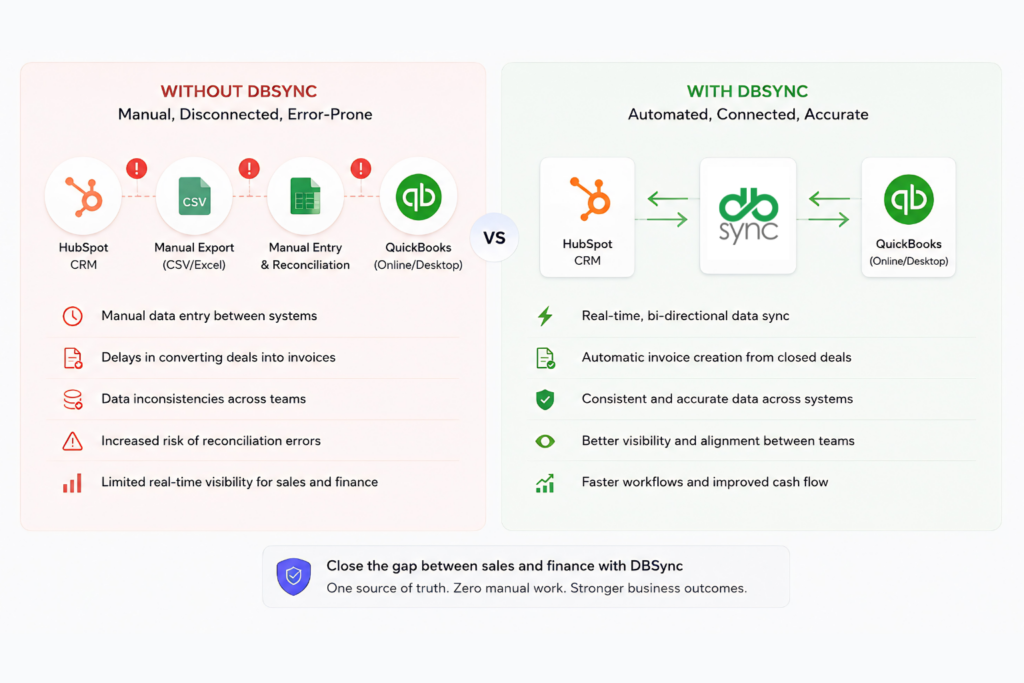
What DBSync Does
DBSync is a data integration and workflow automation platform that helps connect business systems like HubSpot and QuickBooks and ensures that your business critical activities run smoothly. You can use DBSync to:
- Move and sync data between CRM and accounting systems
- Enable bi-directional data flow between HubSpot and QuickBooks
- Set up connections and configure integrations without having to write code
- Choose when you want the data to be updated. It can be real-time or scheduled synchronization
This means your sales team and your finance team can work from a single, consistent source of truth.
Key Benefits of Using DBSync
Here’s what you can expect after connecting DBSync with HubSpot:
- Remove manual work
Automatically sync contacts, companies, deals, invoices, and payments - Faster revenue-to-cash cycle
Generate invoices from closed deals within no time - Better accuracy of data
Minimise errors from duplicate or manual data entry - Increased visibility between the teams
Keep sales and finance aligned with real-time data - Better Operational efficiency
Many companies claim they have reduced processing time by as much as 30 % and increased efficiency by 25%
Prerequisites Before Installation
Before installing DBSync from the marketplace, make sure you have:
- An active HubSpot account with the correct permissions (Admin access is recommended)
- Access to your QuickBooks account (Online or Desktop)
- A DBSync account (which you can create during installation)
- Clarity on what data you want to sync (e.g. contacts, deals, invoices)
Step-by-Step Guide to Install DBSync from HubSpot Marketplace
Follow these steps to install and set up DBSync:
Step 1: Visit the DBSync Listing
Go to the official DBSync app page on the HubSpot Marketplace:
https://ecosystem.hubspot.com/marketplace/listing/dbsync-192429
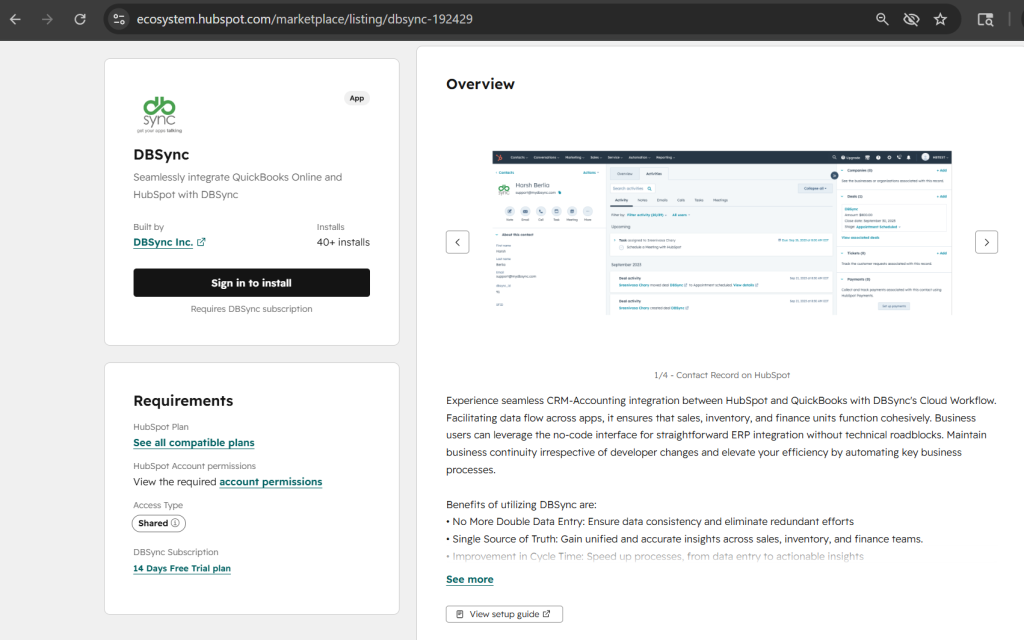
Step 2: Click on “Sign in to install” button
On the listing page, click on “Sign in to install” button as shown in the screenshot to start the process.
Step 3: Log in to Your HubSpot Account
If you are not already logged in, you will be asked to sign in to your HubSpot account.
Step 4: Review and Grant Permissions
Look at the permissions that DBSync aks for and click on the “Connect app” button to authorize and provide access
Step 5: Connecting Your DBSync Account
Log in to your existing DBSync account, or create an account if you don’t have one (you can start with a 14-day free trial, no credit card required)
Step 6: Configure Your Integration
Once you are connected you can use the guided setup wizard.
- Map fields, between HubSpot and QuickBooks.
- Choose the sync direction, which can be bi-directional or one-way.
- You can also set the sync frequency, which can be real-time or scheduled.
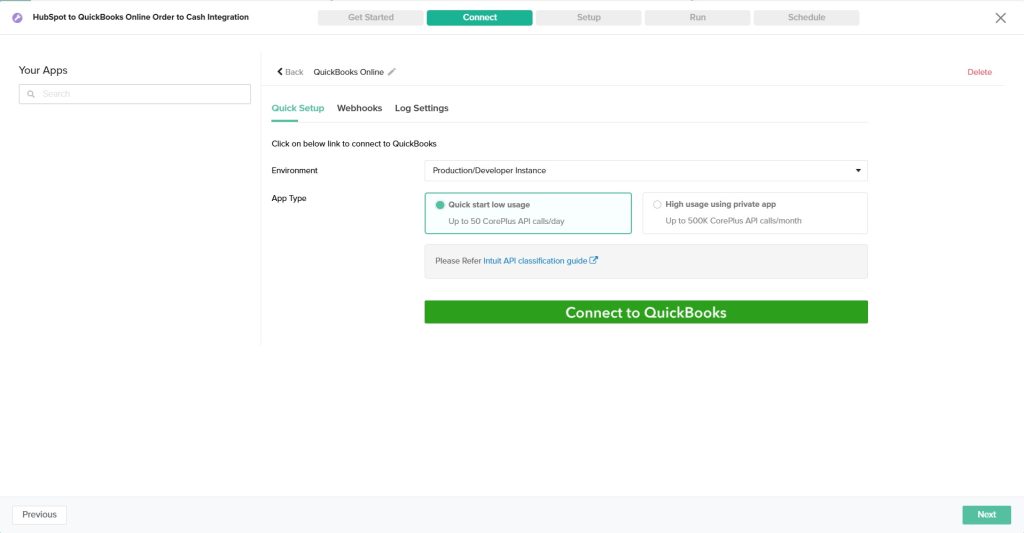
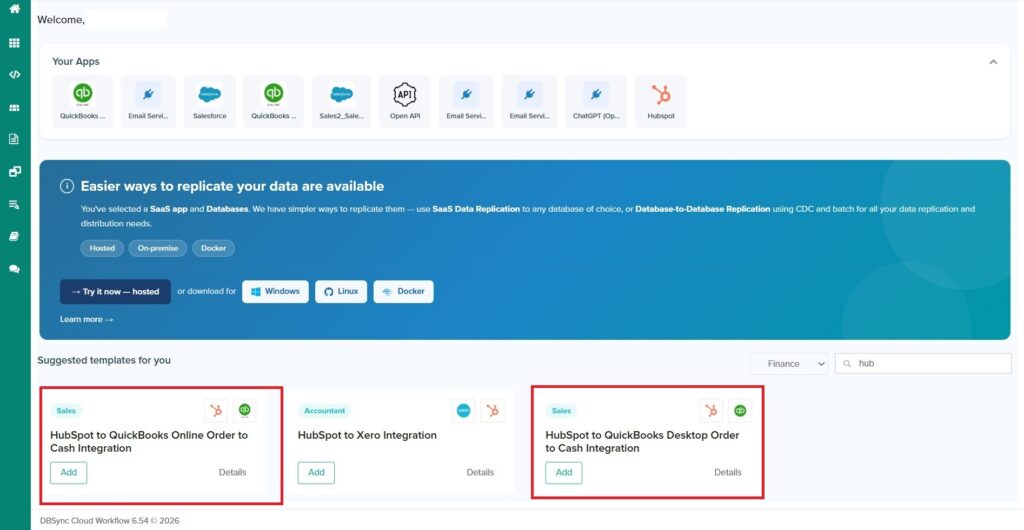
Most users can go live in a few hours, not weeks.
Webinar : The 10-Minute Lead-to-Cash Workflow: HubSpot, Accounting, and AI
Additional Resources
- DBSync Documentation
https://docs.mydbsync.com/cloud-workflow - View Setup Guide (HubSpot to QuickBooks – Order to Cash)
https://docs.mydbsync.com/cloud-workflow/template-library/hubspot-to-quickbooks-online-order-to-cash - Learn More About the HubSpot Connector
https://docs.mydbsync.com/cloud-workflow/connectors/hubspot
Final Thoughts
The availability of DBSync on the HubSpot Marketplace makes it easier to connect your Customer Relationship Management (CRM) system with your accounting systems.
You no longer have to rely on manual processes and deal with data that is not connected. DBSync makes it possible for you to automate your workflows, improve accuracy, and accelerate your revenue cycle, and you can do all of this with just a few clicks.
If you’re looking to close the gap between sales and finance, installing DBSync is a strong first step.