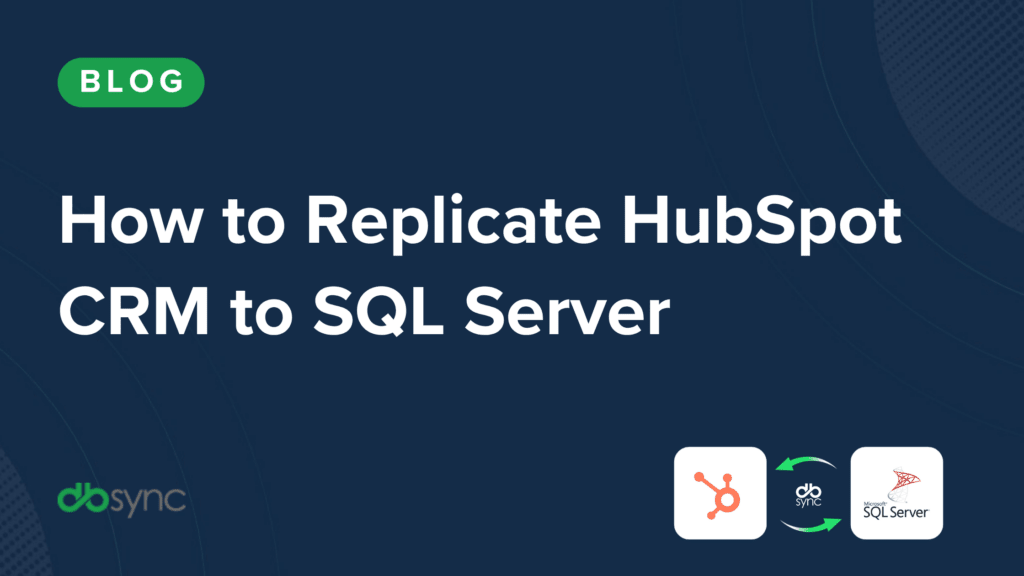
How to Replicate HubSpot to SQL Server
A step-by-step setup guide: connect HubSpot, configure your database, run the sync, and automate it.
Companion to the webinar recording
This guide is the written companion to the HubSpot to SQL Server replication webinar. It stands on its own: use it to set up and run the sync end to end, whether or not you watched the session. Each step maps to the DBSync Cloud Replication console, with links to the full documentation where you may want more detail.
Why replicate HubSpot to SQL Server?
HubSpot is excellent for running sales, marketing, and service day to day, but it was never built for joining complex tables, heavy processing, or deep historical analysis. Moving a structured copy of that data into SQL Server gives you a foundation built for analytics:

The setup at a glance: 4 phases, 7 steps
Every connector sync in DBSync Cloud Replication follows the same four phases. This guide walks each one; the table is your map.
| Phase | Step | What happens |
|---|---|---|
| Connect | 1. Connect HubSpot (source) | Add HubSpot as a data source and authenticate via OAuth. |
| Connect | 2. Connect SQL Server (target) | Enter and test your database credentials. |
| Configure | 3. Select objects & fields | Choose which HubSpot objects and fields to replicate. |
| Run | 4. Update Schema | Build the matching table structure in SQL Server. |
| Run | 5. Clean Copy | Load a full baseline copy of the data. |
| Run | 6. Source to DB | Switch to incremental syncs of new and changed records. |
| Automate | 7. Schedule & notify | Automate the sync on a schedule and turn on alerts. |
The full walkthrough
Each step below follows the same rhythm: what it does, why it matters, how to do it in DBSync, and what to watch out for.
Step 1 — Connect HubSpot (source)
- In the Cloud Replication console, click Add App, choose HubSpot as the data source, and create a profile.

- Open the profile and select Login to HubSpot (OAuth).

- Sign in on the HubSpot page, enter your username and password, and choose the HubSpot account to connect.


- Wait for the confirmation page — your HubSpot connector is now connected.

- Optional: for very large datasets, tick Use Bulk API to group high volumes and avoid rate-limit fatigue.
Watch out for: You’ll need Super-Admin-level HubSpot access to authorize the OAuth connection. Enable Bulk API only for large backfills — for routine incremental syncs the standard API is usually faster to initialize.
Step 2 — Connect SQL Server (target)
- Click the Database icon in the top navigation toolbar.
- Enter your host, port, username, password, database name, and schema. The JDBC URL auto-fills from these details.
- Click Save, then test the connection, then click Next.
Step 3 — Select objects & fields
- Click Objects in the top navigation toolbar.
- Select the HubSpot objects to sync from the left panel.
- In Available Fields, pick the fields to include; use Exclude Fields to drop the ones you don’t need.
Steps 4–6 — Run the sync
- Update Schema — creates the HubSpot object structure as tables and columns in SQL Server, with matching data types.
- Clean Copy — inserts a full baseline copy of the records into those tables.
- Source to DB — performs the incremental sync from HubSpot to the database, moving only records changed since the last run.
| Why this mattersAfter the initial Clean Copy, DBSync tracks the last-modified date as a watermark, so ongoing Source-to-DB syncs pull only new or changed records — typically completing in seconds. DBSync also tracks hard deletes, so records removed in HubSpot are reflected in SQL Server instead of lingering and drifting your reports. |
Step 7 — Schedule & notify
- Open the Scheduler Jobs tab in the top navigation toolbar.
- Create a task: set a name, choose the command (e.g. Source to DB), pick a frequency from the Repeat menu, and set the start date and time.
- Click Save. Then set up email or webhook notifications so you’re alerted on schema changes or errors.
Watch our team build this replication live in the on-demand webinar below.
Best practices for a bulletproof sync
| Practice | Why it matters |
|---|---|
| ✓ Start with a baseline check | Run a full Clean Copy and confirm record counts match on both sides before scheduling. |
| ✓ Automate, then walk away | Use the scheduler for hourly, nightly, or weekly runs so freshness doesn’t depend on memory. |
| ✓ Turn on proactive alerts | Email or webhook notifications tell you about schema changes or errors the moment they happen. |
| ✓ Build for schema evolution | Expect new HubSpot fields; DBSync detects schema changes and adjusts the target dynamically. |
| ✓ Audit associations regularly | Validate key relationships (like deal-to-company) stay sound so cross-object reports don’t break. |
Where DBSync does the heavy lifting
| Handled automatically | What you still decide |
| OAuth connection with automatic token refreshBulk API to bypass rate limits on large loadsAuto-schema mapping of objects, custom fields, associationsIncremental syncingHard-delete tracking to prevent data driftSchema-evolution detection as fields change | Which objects and fields to replicateSync frequency and schedule windowsTarget database, schema, and SSL settingsWho receives error and schema-change alertsWhen to run a full Clean Copy vs. incrementalEnable Bulk API for large data loads |
For the full click-by-click setup with screenshots, and to go deeper on HubSpot replication, use these official resources:
- HubSpot CRM Replication — product overview & how it works
- Complete HubSpot source-setup documentation (step-by-step with screenshots)
The bottom line
Reactive teams compile CSVs on Friday afternoons and stitch together broken charts. Proactive teams replicate HubSpot into SQL Server once, schedule it, and let clean, current data flow into their BI tools automatically. The difference isn’t tooling or talent — it’s setting the sync up correctly and letting it run.
Start with the connect and Clean Copy steps to prove the baseline matches, then schedule incremental syncs and turn on alerts. Within an afternoon you’ll have a replicated SQL foundation your whole reporting stack can trust.
| Ready to run your first sync?Start free, explore the Replication Playground, or book a personalized demo.HubSpot CRM Replication | mydbsync.com | Setup Docs |