

Monday.com and QuickBooks Desktop Integration
Tired of chasing project updates and missing invoice deadlines because of manual data entry? Automate the sync of tasks, invoices, and customer data between Monday.com and QuickBooks Desktop. Eliminate double data entry and mistakes, so your team can focus on what truly drives results.
- Integrate
Connect Monday.com and QuickBooks Desktop
If you’re juggling projects in monday.com and managing finances in QuickBooks Desktop, you know the pain of keeping everything aligned. Manual data entry leads to errors and delays, especially when you can’t rely on native cloud APIs. Integration bridges the gap so when your team marks a project “done,” your books know it’s time to bill.
Seamless customer sync
Automatically update customer data across both platforms, to keep records accurate and current
One-click invoice creation
Generate invoices directly from completed Monday.com tasks—no more manual entry
Instant payment tracking
See payment status updates reflected instantly on your Monday.com boards, to keep everyone in the loop
Access anywhere
Leverage the integration platform to manage finances and sync data as needed
Streamline Financials
Easily manage project billing and finances with full accuracy and compliance.
Reduced Administrative Overhead
Automate double data entry and reconciliation, to free up staff to focus on casework.
Who's this for
Who benefits from this Integration
-
Project managers who want less admin and more action
-
Finance teams tired of hunting down project updates
-
Agencies and service businesses ready to scale without extra paperwork.
How it works
Integrate in three simple steps
Why choose us?
Experience and Expertise
Proven track record in case management and accounting integrations, delivering effective and user-friendly solutions.
Quick Deployment
Get up and running within hours, ensuring minimal disruption to your operations.
Customizable to Your Needs
Tailored integration with custom field mappings and workflow adjustments to fit your requirements.
Exceptional Support
Dedicated support team available at every stage, from setup to ongoing maintenance.
Integration features
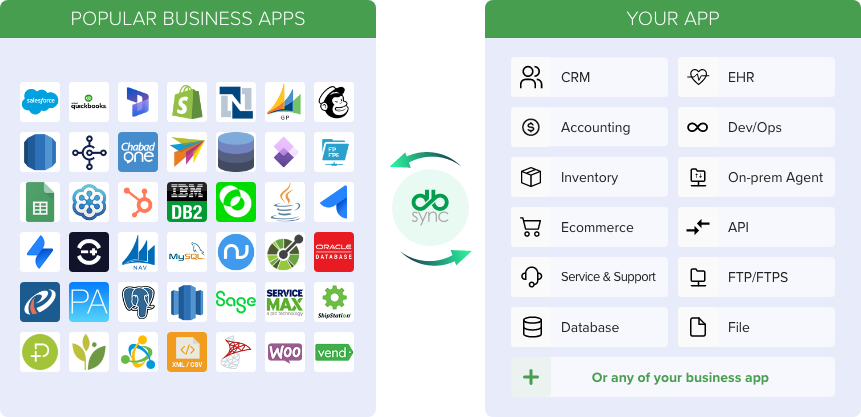
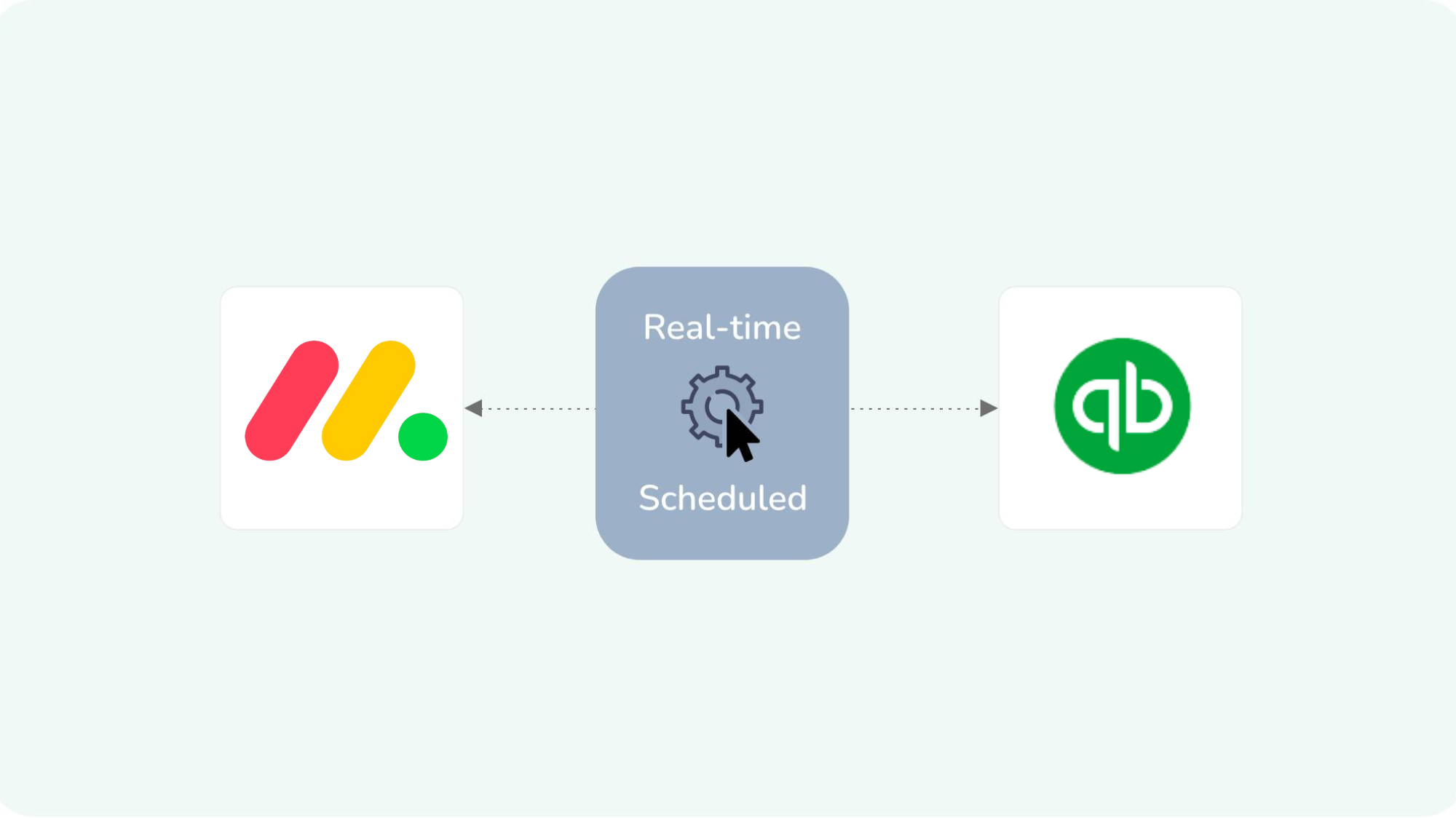
Seamless Data Synchronization
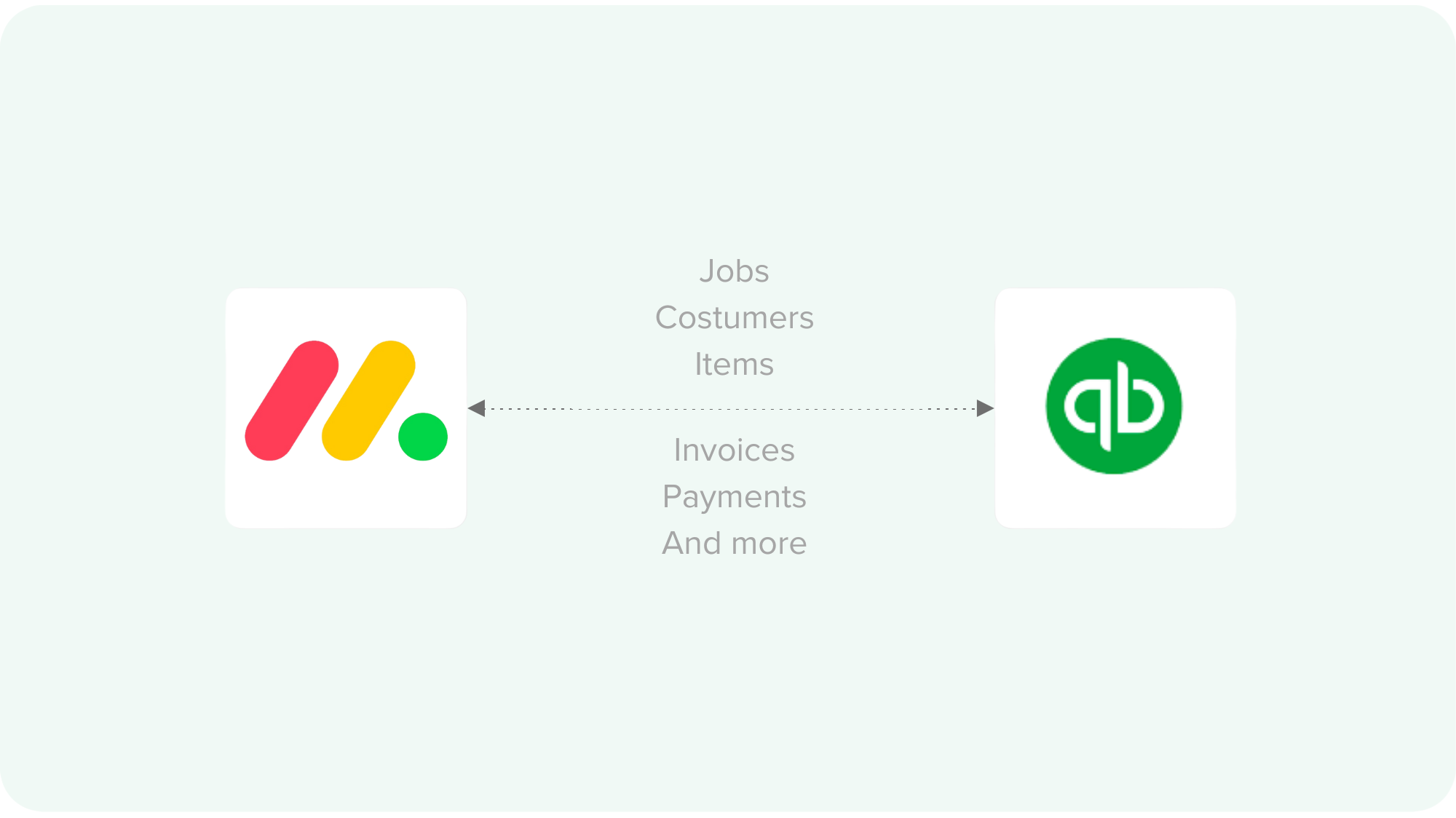
Sync clients, project boards, tasks, invoices, payments, and customer details instantly between Monday.com and QuickBooks Desktop, keeping your project updates and financial records always accurate and up to date.
Custom Object Mapping
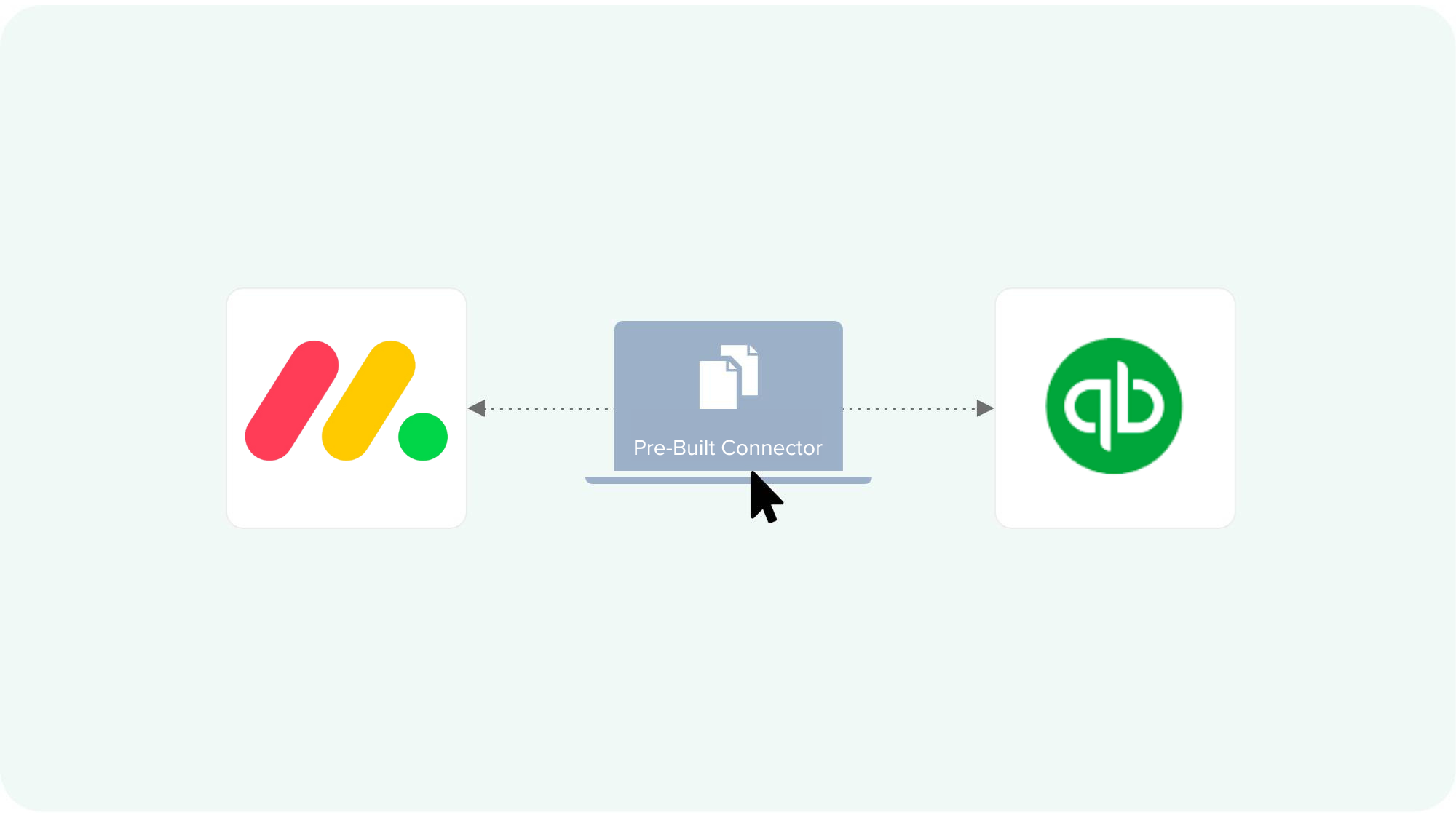
Automate mapping of Monday.com boards, items, and columns to QuickBooks Desktop entities like Customers, Invoices, and Payments using prebuilt connectors—so your workflows fit your business, not the other way around.
Integration Setup in Minutes
Get integrations live in minutes: use our streamlined 3-step ‘Connect-Setup-Run’ process with prebuilt connectors and quick form-based configuration.
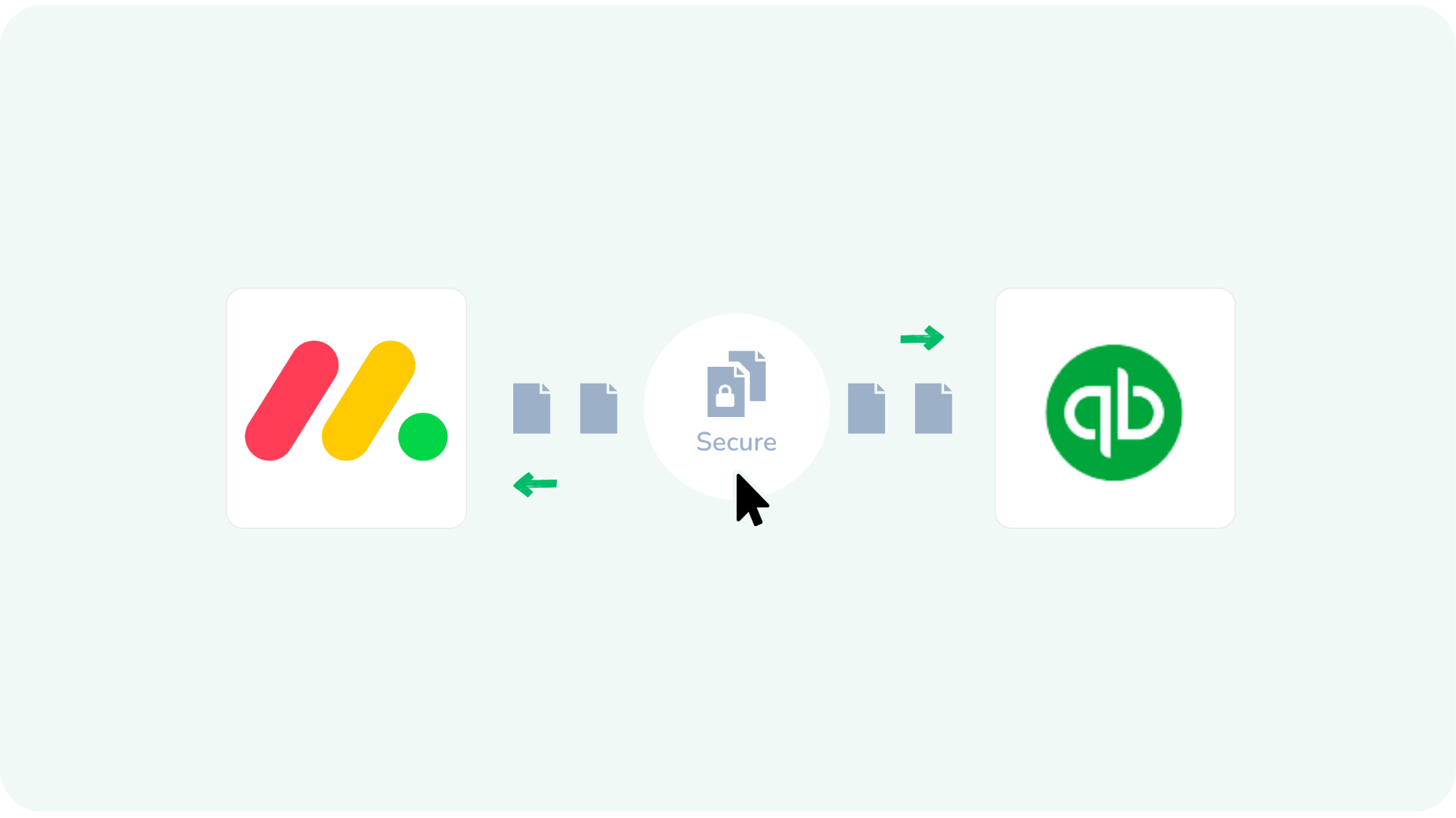
Secure and Reliable Integration
Advanced encryption, compliance with GDPR and CCPA, and robust error handling to protect data and resolve issues promptly.
FAQs
Find quick answers to common questions instantly. Still searching? Our experts are ready to help. Contact us to discuss your unique situation and goals.
It is an automated solution that syncs data such as customers, invoices, projects, and payments between Monday.com and QuickBooks Desktop, helping eliminate double entry and reduce manual errors.
You can sync Customers, Invoices, Projects, Payments, and related data fields between the two platforms.
No, most prebuilt connectors offer no-code or low-code setup, making it accessible for business users without technical expertise.
No coding is needed. The setup process is straightforward and guided, with support available if you need help.
Most users can complete the setup in about 30 minutes. More complex configurations might take a bit longer.
Yes, the integration allows customizable field and entity mapping to fit your unique business workflows.
The integration supports bi-directional sync, so updates in either Monday.com or QuickBooks Desktop are reflected in the other system.
You’ll receive alerts and have access to detailed logs to help resolve any issues. Our support team is also available to assist.
Yes, a free trial is available so you can test the integration before committing and we will soon be availaible on the monday.cm marketplace too.
All data is encrypted and securely transferred, following industry best practices for data protection.
Connect Monday.com and QuickBooks Desktop
See DBSync in Action
A project wraps up in Monday.com, and—like magic—an invoice appears in QuickBooks Desktop. A client pays, and your team is instantly notified. No emails, no spreadsheets, no “Did you remember to…?

Effortless Integration
Invoices are created the moment your work is done—no more delays.

Automated Workflows
Client and project info stays consistent everywhere, always.

Continuous Sync
Payment updates flow back to your team, so everyone’s in the loop

Get started
Optimize your project and accounting operations
Contact Integration Expert
Questions about our product, pricing, or offerings? Fill in the form below and we will contact you. We endeavor to answer all inquiries within 24 hours on business days.